How to Edit a PDF Online
Edit · Free tool
Change existing text, add new text, erase content, highlight and draw on PDF pages.
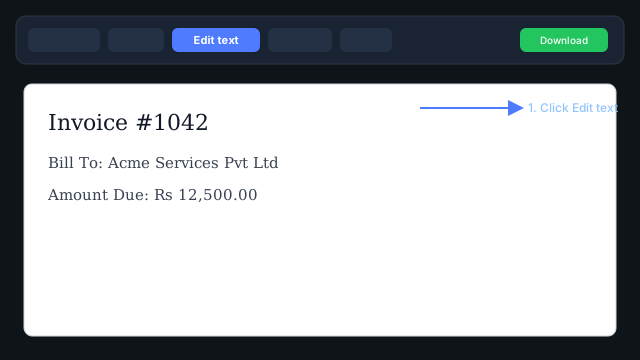
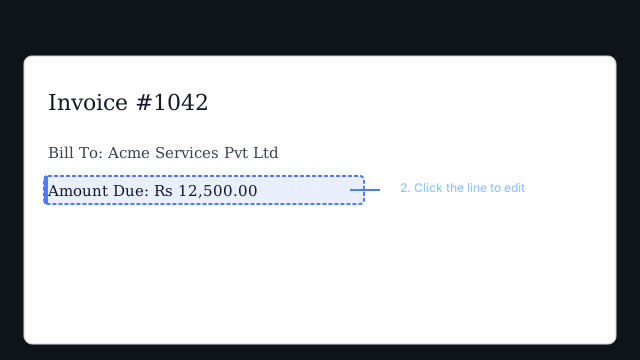
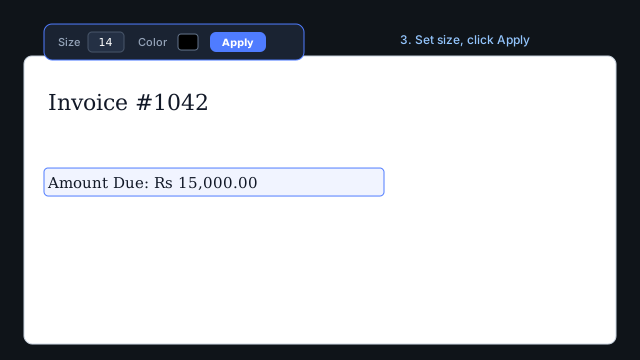
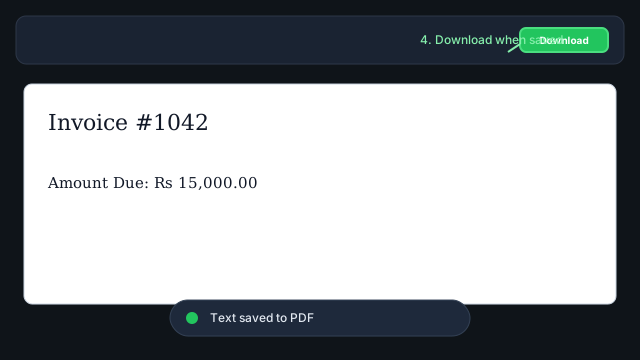
Edit existing text — visual walkthrough
Quick steps
- Upload your PDF and open the editor.
- Click Edit text in the toolbar.
- Click a line of text on the page — an editable box appears.
- Change the text. Adjust Size and Color if needed.
- Click Apply or click outside the box.
- Wait for “Text saved to PDF” before clicking Download.
Add text, erase & annotate
- Add text — click the page to place new text anywhere.
- Erase — paint over content you want to remove (white-out).
- Highlight / draw — use annotation tools from the toolbar.
Scanned PDFs
Scanned pages are images. Use OCR (Premium) to extract text first, or use Add text and Erase to overlay corrections.
Troubleshooting
- Line blank after download — wait for save confirmation; try a smaller font size.
- No editable text shown — the page may be scanned; run OCR or use Add text.
- Font looks different — replaced text uses a standard web font; original embedded fonts may differ.
Frequently asked questions
Can I edit existing text like Smallpdf?
Yes. Use the Edit text tool to click a line, change it, click Apply or click away, then wait for “Text saved to PDF” before downloading.
Why is my edited line blank after download?
Wait for the save confirmation toast before downloading. If text still disappears, try a slightly smaller font size or shorter text.
Can I edit scanned PDFs?
Scanned pages are images. Run OCR first to extract text, or use Add text and Erase tools to overlay changes.