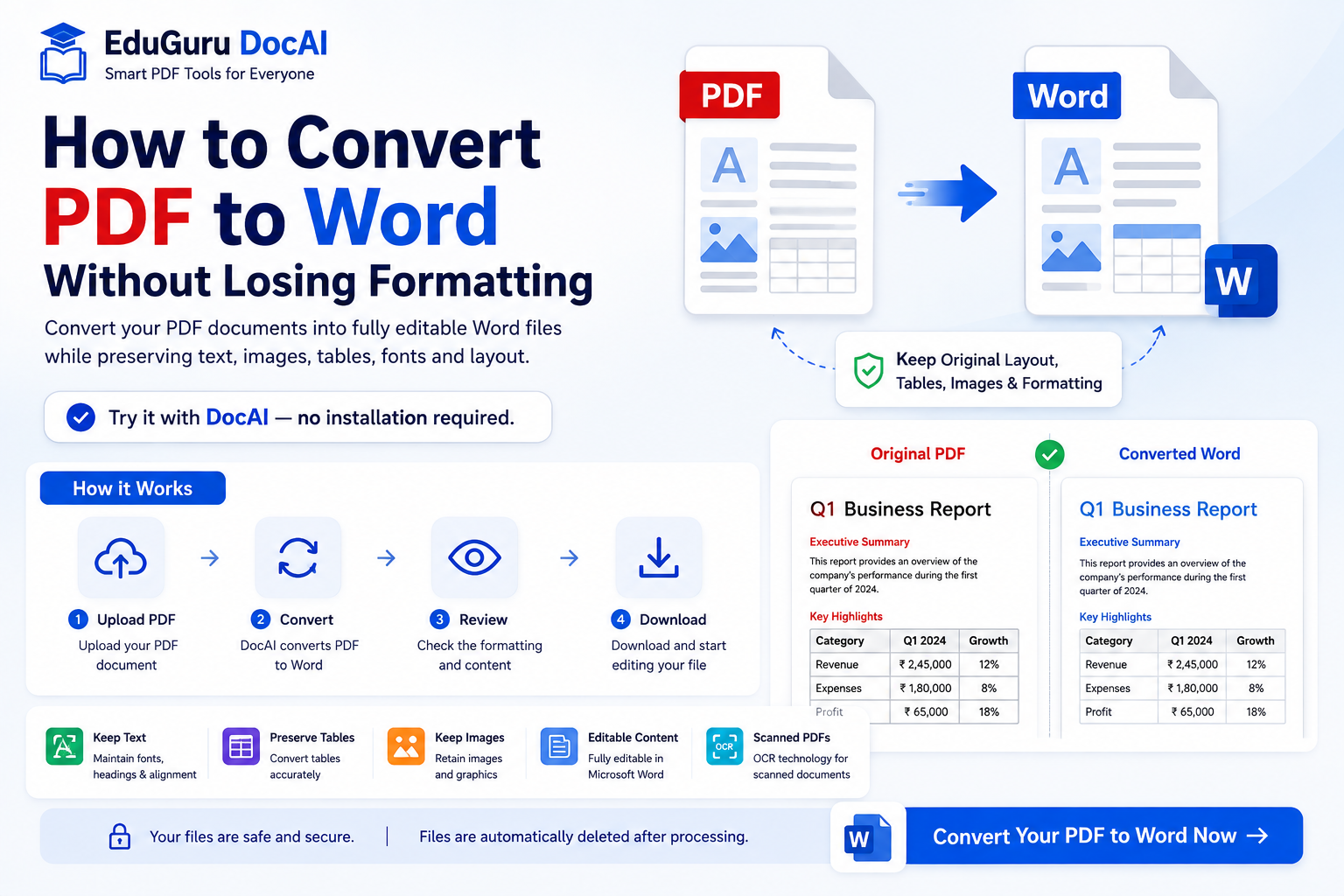
PDF is one of the most reliable formats for sharing documents because it helps preserve the original layout across different devices. But that strength can become a limitation when you need to edit the document.
You may have a PDF containing a report, agreement, resume, invoice, application, research paper, or scanned document that you now need in an editable Microsoft Word format.
The challenge is not simply converting the file.
The real challenge is:
How do you convert PDF to Word without losing the original formatting?
Tables, images, headings, fonts, columns, page breaks, and alignment can all change during conversion if the document isn’t processed correctly.
With EduGuru DocAI PDF Tools, you can convert PDF documents online and continue working with your files directly from your browser.
Try it with DocAI — no installation required.
Why Convert PDF to Word?
PDFs are excellent for viewing and sharing finished documents, while Word documents are generally easier to edit.
Converting a PDF to Word can help when you need to:
- Correct existing text
- Update an old document
- Reuse content
- Modify a resume
- Edit a business proposal
- Update a contract
- Extract information from a report
- Edit tables
- Change document formatting
- Work with scanned documents
- Add or remove sections
Instead of recreating the document manually, PDF-to-Word conversion can give you an editable starting point.
How to Convert PDF to Word Online
The process can be completed directly through your browser.
Step 1: Open EduGuru DocAI PDF Tools
Open the EduGuru DocAI PDF Tools page:
There is no need to install traditional PDF conversion software.
Step 2: Choose PDF to Word
Select the PDF to Word conversion option.
This tells DocAI that you want to transform your PDF into an editable Word document.
Step 3: Upload Your PDF
Select the PDF document you want to convert.
For example:
Business-Proposal.pdf
Resume.pdf
Agreement.pdf
Research-Report.pdf
Invoice.pdf
or a scanned document.
Always consider the sensitivity of your document before uploading it to any online service.
Step 4: Convert the PDF
Start the conversion process.
The converter analyzes the PDF’s content and structure and creates an editable Word document.
Depending on the original PDF, this may involve processing:
- Text
- Paragraphs
- Headings
- Images
- Tables
- Lists
- Columns
- Page breaks
- Fonts
- Alignment
More complex documents can require more processing than simple text-based PDFs.
Step 5: Review the Word Document
Once conversion is complete, open the resulting Word document and compare it with the original PDF.
Check:
- Headings
- Paragraph alignment
- Fonts
- Tables
- Images
- Lists
- Headers and footers
- Page breaks
- Columns
- Special characters
Small adjustments may still be necessary, particularly with highly complex PDFs.
Step 6: Download and Edit
Download the converted Word document and make the required changes.
Need to Edit a PDF in Word?
Convert your PDF into an editable document directly from your browser.
Try it with DocAI — no installation required.
Why Does PDF Formatting Sometimes Change During Conversion?
PDF and Word are fundamentally different document formats.
A PDF is designed primarily to preserve the appearance of a page.
Word, on the other hand, stores editable document structures such as:
- Paragraphs
- Sections
- Tables
- Styles
- Margins
- Headers
- Footers
- Flowing text
During conversion, the software has to reconstruct these structures from the PDF.
That’s why some documents convert more accurately than others.
What Formatting Can Be Preserved?
Depending on the original PDF and conversion technology, a good PDF-to-Word converter may preserve much of the original document structure.
Text Formatting
This can include:
- Bold
- Italic
- Font size
- Paragraph spacing
- Alignment
Headings
Heading hierarchy and visual formatting may be reconstructed in the Word document.
Images
Images can often be extracted and placed near their original positions.
Tables
Tables may be reconstructed as editable Word tables when their structure can be identified correctly.
Lists
Bulleted and numbered lists may be recreated.
Page Layout
Margins, columns, page breaks, and spacing may be approximated to match the original document.
Which PDFs Are Easiest to Convert?
PDFs generated directly from applications such as word processors generally convert better than scanned documents.
For example:
Word → PDF → Word
will often produce better results than:
Printed document → Scanner → PDF → Word
Why?
Because a digitally generated PDF can contain actual text information.
A scanned PDF may contain only images of text.
That’s where OCR becomes important.
How to Convert a Scanned PDF to Word
Suppose you scan a printed contract.
The PDF may look perfectly readable to you, but the computer may see each page as an image.
To convert it into editable Word text, the system first needs to recognize the characters.
This is done using:
OCR — Optical Character Recognition
OCR analyzes the scanned image and attempts to identify:
- Letters
- Numbers
- Words
- Paragraphs
- Tables
- Other text elements
A scanned PDF-to-Word workflow may therefore look like:
Scanned PDF → OCR → Text Recognition → Layout Analysis → Word Document
Have a Scanned PDF?
Use DocAI’s OCR capabilities to recognize document text and continue your document workflow.
How to Convert PDF Tables to Word
Tables can be one of the more challenging elements to preserve during PDF conversion.
A table may visually appear as rows and columns, but internally the PDF may simply contain individual pieces of text positioned at specific coordinates.
The converter therefore has to determine:
“Is this actually a table?”
and then reconstruct its structure.
After conversion, check:
- Number of rows
- Number of columns
- Cell alignment
- Merged cells
- Borders
- Text wrapping
Complex financial statements and reports may require some manual adjustment.
How to Preserve Images During PDF to Word Conversion
If your PDF contains photographs, diagrams, logos, charts, or illustrations, check their placement after conversion.
Pay attention to:
- Image size
- Alignment
- Text wrapping
- Captions
- Resolution
- Position relative to surrounding text
A Word document allows content to reflow, so images can occasionally move when the surrounding text becomes editable.
PDF to Word for Resumes
A common use case is updating an old resume that only exists as a PDF.
Instead of recreating the entire resume:
Upload PDF → Convert to Word → Edit → Save
However, resumes often use:
- Multiple columns
- Text boxes
- Icons
- Tables
- Precise spacing
These design elements can make conversion more challenging.
Always review the final document carefully before sending it to an employer.
PDF to Word for Business Documents
Businesses frequently need to reuse information contained in:
- Proposals
- Quotations
- Reports
- Agreements
- Forms
- Invoices
- Policy documents
- Presentations
PDF-to-Word conversion can reduce the amount of manual copying and retyping required.
For example:
2025-Proposal.pdf
could be converted into an editable Word document and updated for a new customer rather than recreated from scratch.
PDF to Word for Students and Researchers
Students, teachers, and researchers often work with PDF documents.
Conversion can be useful when you need to:
- Extract notes
- Edit a report
- Reuse research material
- Work with tables
- Prepare study documents
- Add comments
- Update an assignment
Remember to respect copyright and academic-integrity requirements when reusing material from documents you didn’t create.
Can AI Improve PDF Document Processing?
Traditional PDF conversion focuses primarily on reproducing the document.
AI document tools can go further by helping users understand what’s inside the PDF.
For example, after uploading a document, AI can potentially help with tasks such as:
- Summarizing the document
- Finding important information
- Answering questions
- Extracting structured data
- Identifying tables
- Translating text
- Comparing documents
- Detecting sensitive information
This means you may not always need to convert the entire PDF simply to obtain a particular piece of information.
PDF to Word vs AI PDF
Consider a 100-page business report.
Traditional workflow:
PDF → Convert to Word → Open Word → Search → Read → Find information
AI-assisted workflow:
Upload PDF → Ask: “What were the key revenue figures?”
Both approaches have different purposes.
PDF-to-Word is useful when you want an editable document.
AI document analysis is useful when you primarily need to understand or extract information.
DocAI is being developed to bring these workflows together.
Protect Sensitive Information Before Sharing
Converted documents may contain personal or confidential information.
Examples include:
- Names
- Email addresses
- Phone numbers
- Home addresses
- Dates of birth
- Passport numbers
- Bank account information
- Credit card information
- Government identification numbers
Indian documents may also contain identifiers such as:
- Aadhaar
- PAN
- GSTIN
- IFSC
If you intend to share the document, review whether all of this information should remain visible.
Use Smart Redact for Sensitive Documents
Simply covering sensitive text visually may not permanently remove the underlying information.
Proper redaction should remove the confidential content from the resulting document.
DocAI’s Smart Redact capabilities are designed around identifying and protecting sensitive information in documents.
Sharing a Document?
Check for personal information before sending it.
Tips for Better PDF to Word Conversion
Start With the Best PDF Available
If you have several versions of a document, use the highest-quality original.
Use OCR for Scanned Documents
If text cannot be selected inside the PDF, OCR may be required.
Avoid Repeated Conversions
Repeatedly converting:
PDF → Word → PDF → Word
can gradually introduce formatting differences.
Keep the original source document whenever possible.
Check Tables Carefully
Complex tables are more likely to require manual correction.
Review Fonts
If the original font isn’t available, Word may substitute another font.
Check Headers and Footers
Page numbers and repeating content may be interpreted differently during conversion.
Compare Both Documents
Always compare the final Word document with the original PDF before relying on it.
PDF to Word vs Copy and Paste
You could manually copy text from a PDF and paste it into Word.
But this may result in:
- Broken paragraphs
- Missing images
- Lost formatting
- Incorrect tables
- Unnecessary line breaks
- Extra spaces
A dedicated PDF-to-Word converter attempts to reconstruct the document rather than simply copy individual pieces of text.
More Than PDF to Word
EduGuru DocAI brings multiple PDF and document tools together.
Edit PDF
Make supported changes directly to PDFs.
Merge PDF
Combine multiple documents.
Split PDF
Separate pages or sections.
Compress PDF
Reduce file size for easier sharing.
Convert PDF
Convert PDFs to supported editable formats.
OCR PDF
Recognize text in scanned documents.
Sign PDF
Add electronic signatures.
Smart Redact
Detect and remove sensitive information.
DocAI
Use AI to summarize, analyze, translate, extract, and understand documents where supported.
Frequently Asked Questions
How do I convert a PDF to Word without losing formatting?
Use a PDF-to-Word converter that analyzes the document’s text, layout, images, tables, and other structural elements. Complex documents may still require minor formatting adjustments after conversion.
Can I convert PDF to Word online?
Yes. Browser-based PDF conversion tools can process PDFs online without requiring desktop conversion software.
Can I convert a scanned PDF to Word?
Yes, but scanned documents generally require OCR first so the text contained in the page images can be recognized.
Will PDF tables remain editable in Word?
Depending on the document and converter, tables may be reconstructed as editable Word tables. Complex layouts can require manual correction.
Why did my PDF formatting change after conversion?
PDFs preserve fixed page appearance, while Word uses editable, flowing document structures. Converting between these formats requires reconstructing the layout, which can introduce differences.
Can I edit the Word file after conversion?
Yes. The purpose of PDF-to-Word conversion is generally to produce a document whose supported content can be edited in Word-compatible software.
Can I convert PDF to Word without installing software?
Yes. An online PDF converter works through your web browser.
Is OCR necessary for PDF to Word?
Not always. Digitally generated PDFs often already contain machine-readable text. OCR is primarily needed for scanned or image-based PDFs.
Should I keep my original PDF?
Yes. Keep the original document so you can compare formatting or repeat the conversion if necessary.
Convert PDF to Word With DocAI
Don’t waste time recreating an entire document just because you only have the PDF version.
Convert your PDF into an editable Word document, review the formatting, and continue working with your content using EduGuru DocAI PDF Tools.
Try it with DocAI — no installation required.
DocAI — Edit. Understand. Protect. Automate.