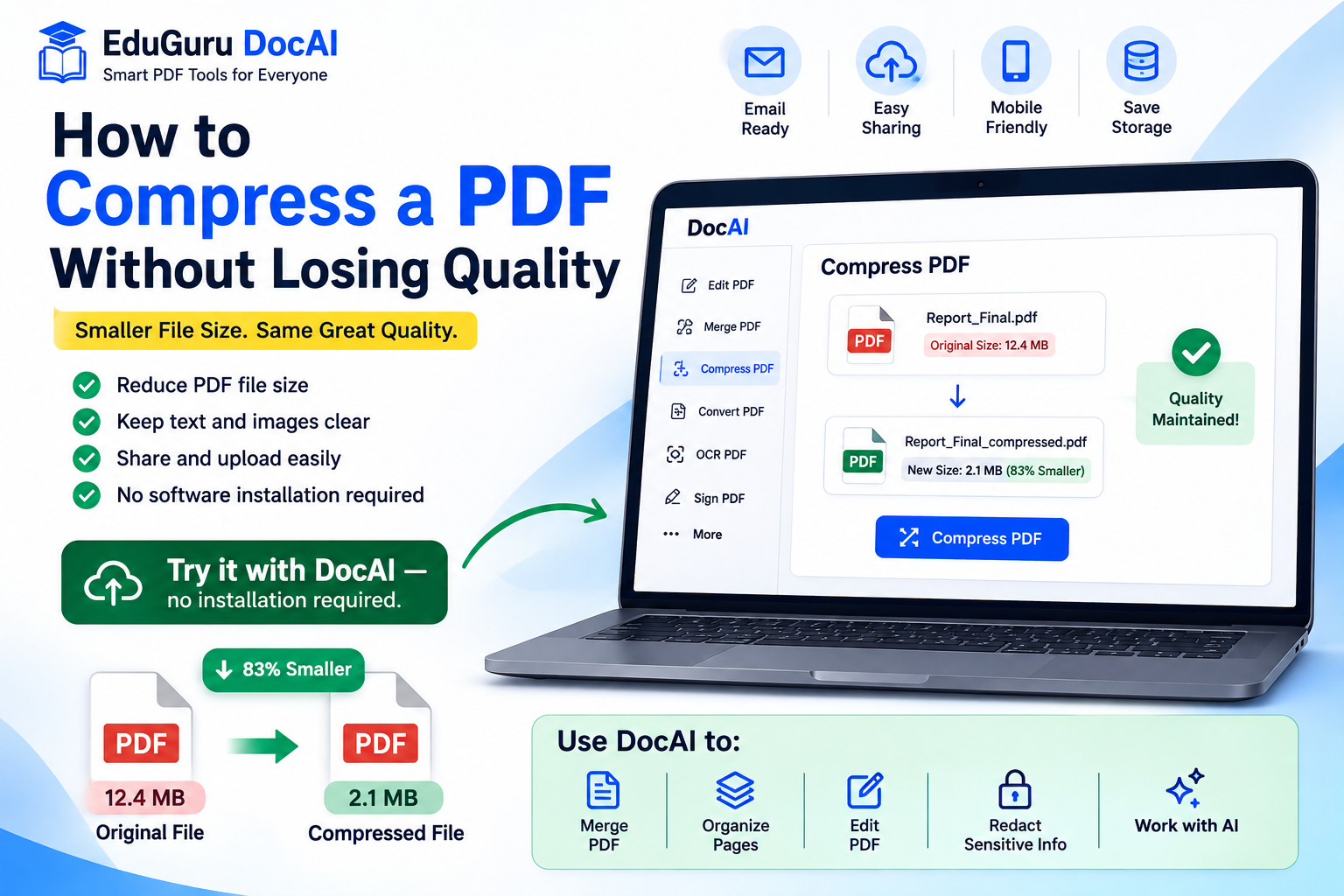
Large PDF files can be difficult to email, upload to websites, share through messaging apps, or store efficiently.
A PDF containing scanned documents, high-resolution images, presentations, reports, certificates, or graphics can quickly grow to several megabytes—or much more.
The good news is that you don’t necessarily have to remove pages or drastically reduce image quality to make the document smaller.
With the right PDF compression method, you can reduce PDF file size while maintaining good visual quality.
In this guide, we’ll explain how PDF compression works, what affects PDF size, and how to compress a PDF online using EduGuru DocAI PDF Tools.
Try it with DocAI — no installation required.
What Does PDF Compression Mean?
PDF compression reduces the amount of storage required by a PDF document.
A PDF can contain many different types of data, including:
- Text
- High-resolution photographs
- Scanned pages
- Embedded fonts
- Graphics
- Form elements
- Metadata
- Repeated resources
Some of this information can be optimized or compressed without significantly affecting how the document looks to the reader.
The goal is simple:
Smaller PDF + acceptable visual quality = easier document sharing
Why Are Some PDF Files So Large?
Before compressing a PDF, it helps to understand why the file became large in the first place.
High-Resolution Images
Images are often responsible for a large percentage of PDF file size.
A report containing dozens of high-resolution photographs can be considerably larger than a text-only PDF.
Scanned Documents
Scanners can create high-resolution images for every page.
A 50-page scanned document may effectively contain 50 large images.
Color Scans
Full-color scanned pages usually require more storage than grayscale or monochrome documents.
Embedded Fonts
Some PDFs contain embedded font data to ensure the document displays consistently on different systems.
Complex Graphics
Presentations, brochures, designs, charts, illustrations, and other graphics-heavy documents can increase PDF size.
Unoptimized Source Documents
PDFs exported from design software, scanners, office applications, or other systems may contain resources that haven’t been optimized for online sharing.
How to Compress a PDF Online
Using an online PDF compressor can make the process straightforward.
Step 1: Open EduGuru DocAI PDF Tools
Open the DocAI PDF tools in your browser.
No desktop PDF application is required for the online workflow.
Step 2: Choose Compress PDF
Select the Compress PDF tool.
The compression workspace allows you to process your PDF and reduce its file size.
Step 3: Upload Your PDF
Select the PDF you want to compress.
Depending on the document, it may contain:
- Scanned pages
- Images
- Reports
- Presentations
- Certificates
- Forms
- Business documents
Always consider the sensitivity of a document before uploading it to any online service.
Step 4: Compress the Document
Start the PDF compression process.
The system will optimize the document to reduce its size while attempting to maintain usable document quality.
The amount of compression possible depends heavily on the original PDF.
For example, a document containing large photographs may offer considerably more compression potential than an already optimized text-only PDF.
Step 5: Check the Result
Before sharing the compressed document, open it and inspect important pages.
Pay particular attention to:
- Small text
- Photographs
- Charts
- Diagrams
- Signatures
- QR codes
- Barcodes
- Scanned IDs
- Fine print
If these elements remain clear enough for the intended use, the compressed version is ready.
Step 6: Download Your Compressed PDF
Once you’re satisfied with the result, download the optimized PDF.
Need a Smaller PDF Right Now?
Reduce your PDF file size directly from your browser.
Try it with DocAI — no installation required.
Can You Compress a PDF Without Losing Quality?
This requires an important distinction.
It is sometimes possible to reduce PDF size without visible quality loss, particularly when the original file contains redundant or inefficiently stored information.
However, significant reductions often require some form of optimization, especially for images.
The better goal is therefore:
Reduce the PDF to the smallest practical size while maintaining the quality required for its intended use.
A 100 MB photography portfolio and a 100 MB scanned application form shouldn’t necessarily use the same compression settings.
Lossless vs Lossy PDF Compression
There are broadly two approaches to compression.
Lossless Compression
Lossless techniques attempt to reduce file size without discarding information required to reconstruct the original data.
This is ideal when preserving document quality is particularly important.
However, the achievable file-size reduction may be limited.
Lossy Compression
Lossy techniques can achieve greater reductions by removing some information, particularly from images.
When applied carefully, the difference may be difficult to notice during normal viewing.
Aggressive lossy compression, however, can cause:
- Blurry images
- Pixelation
- Difficult-to-read small text
- Poor scan quality
- Reduced print quality
The correct level depends on how the PDF will be used.
Which Compression Level Should You Use?
Different documents require different priorities.
For Email
If the goal is simply to send a document by email, moderate compression is usually a good starting point.
Prioritize readability while bringing the document below the email attachment limit.
For Website Uploads
Many government, university, recruitment, banking, insurance, and application portals specify maximum file sizes.
For example, you may encounter requirements such as:
PDF must be less than 5 MB
or:
Maximum document size: 2 MB
In these situations, progressively compress the document while checking that important information remains readable.
For Printing
If the document will be professionally printed, avoid excessive image compression.
Higher-resolution images may be necessary.
For Archiving
For important long-term records, quality and document integrity may be more important than minimizing storage.
How to Compress a PDF for Email
Suppose your PDF is 18 MB, but your preferred sharing method has a lower practical attachment limit.
A simple workflow is:
Upload PDF → Compress → Check Quality → Download → Attach
If the result is still too large, you may need stronger compression.
If the PDF contains unnecessary pages, you can also remove them before compressing.
How to Reduce PDF Size for Online Applications
Large PDFs frequently cause problems when submitting:
- Job applications
- University applications
- Visa documents
- Loan applications
- Insurance documents
- Government forms
- Business registrations
- Tender documents
A practical workflow is:
Organize → Delete unnecessary pages → Compress → Verify → Upload
This can reduce file size without unnecessarily sacrificing readability.
Compress Scanned PDF Documents
Scanned PDFs often have excellent compression potential because every page may contain a high-resolution image.
For example:
A scanner might create an A4 page at a resolution intended for high-quality printing, even though you only need to upload the document to an online portal.
Optimizing the scan can dramatically reduce the resulting PDF size.
However, be careful with documents containing:
- Small text
- Signatures
- Stamps
- Identification numbers
- QR codes
- Barcodes
Excessive compression can make these elements difficult to read or scan.
Compress PDF After Merging Files
If you’ve combined several PDFs into one document, the resulting file may become significantly larger.
For example:
Document A: 4 MB
Document B: 7 MB
Document C: 5 MB
After merging, the final PDF may need optimization before it can be conveniently shared.
A useful workflow with DocAI is:
Merge PDF → Organize → Compress → Download
Compress PDF Before Sharing
Compression isn’t the only thing to consider before sharing a document.
You should also check whether the PDF contains information that the recipient shouldn’t receive.
This can include:
- Personal addresses
- Phone numbers
- Email addresses
- Dates of birth
- Passport numbers
- Bank account information
- Credit or debit card numbers
- Government identification numbers
For Indian documents, this may also include information such as Aadhaar or PAN numbers.
If sensitive information shouldn’t be shared, consider properly redacting it.
Compress and Protect Your PDF
DocAI is designed to bring common document operations together.
After compressing a PDF, you can use appropriate document tools to:
Edit → Organize → Compress → Sign → Redact → Download
Sharing a Sensitive Document?
Check the document before sending it.
Use proper redaction when confidential or personal information needs to be permanently removed.
PDF Compression vs ZIP Compression
Users sometimes ask whether putting a PDF inside a ZIP file will achieve the same result.
Usually, they’re different approaches.
Many PDFs already contain compressed data. Putting such a PDF into a ZIP archive may therefore produce only a modest reduction.
A dedicated PDF compressor can optimize elements inside the document itself, including images and other PDF resources.
If the recipient needs an actual .pdf file rather than a ZIP archive, PDF compression is generally more convenient.
Should You Compress a PDF More Than Once?
Usually, repeatedly applying lossy compression isn’t ideal.
If images have already been reduced in quality, compressing them aggressively again can introduce additional degradation.
It’s better to keep the original PDF and create optimized versions from that original when possible.
For example:
report-original.pdf
→ report-email.pdf
→ report-web.pdf
This also gives you a high-quality master copy if it’s needed later.
How to Keep PDF Quality High
Here are some practical tips.
Keep Your Original
Always retain the original high-quality document before compression.
Don’t Over-Compress
Use only as much compression as necessary for the intended destination.
Check Small Text
Zoom into small text after compression and verify that it’s still readable.
Check Images
Look for obvious pixelation or artifacts.
Test QR Codes and Barcodes
If the PDF contains machine-readable codes, verify that they still work.
Check Signatures and Stamps
Important signatures, seals, and stamps should remain clearly visible.
Consider the Destination
A PDF intended for a mobile screen can often tolerate more compression than one intended for professional printing.
More Than PDF Compression
With EduGuru DocAI PDF Tools, you can perform multiple document operations from one place.
Edit PDF
Add text, annotate and make supported changes to PDF documents.
Merge PDF
Combine multiple PDF files into one document.
Split PDF
Extract pages or divide a large document into smaller files.
Organize PDF
Rotate, reorder, or remove pages.
Convert PDF
Convert PDFs and supported document formats.
OCR PDF
Recognize text inside scanned documents.
Sign PDF
Add electronic signatures to documents.
Redact PDF
Remove sensitive information before sharing.
AI Document Tools
Use AI-powered capabilities to help understand, summarize, extract, translate, and work with document content where available.
Frequently Asked Questions
How do I compress a PDF without losing quality?
Use PDF optimization that reduces unnecessary data while preserving the quality needed for your document. For image-heavy PDFs, moderate image optimization can substantially reduce file size with little noticeable difference during normal viewing.
Can I compress a PDF online?
Yes. Online PDF compression tools allow you to upload, optimize, and download PDF documents directly through your browser.
Why is my PDF so large?
Large images, high-resolution scans, embedded fonts, graphics, and unoptimized document resources are common causes of large PDF files.
Can I compress a scanned PDF?
Yes. Scanned PDFs often contain large page images and can potentially be reduced significantly. Check text, signatures, stamps, QR codes, and other fine details after compression.
Will compressing a PDF make the text blurry?
Machine-generated PDF text often remains sharp because it isn’t stored as an image. However, text contained inside scanned page images can become blurry if image compression is too aggressive.
Can I compress a PDF for email?
Yes. Compressing a PDF can make it easier to attach to emails or share through messaging platforms.
Can I reduce a PDF to a specific size?
The achievable size depends on the document. A PDF compressor can reduce file size, but reaching an exact target such as 1 MB or 2 MB may require adjusting the compression level and checking the result.
Should I delete my original PDF after compression?
Keeping the original is recommended, particularly for important documents. You can then generate different compressed versions for email, web uploads, or other purposes.
Compress Your PDF With DocAI
Large PDFs don’t have to slow down your document workflow.
Reduce your file size, check the resulting quality, and continue editing, organizing, signing, OCR processing, or protecting your document with EduGuru DocAI PDF Tools.
Try it with DocAI — no installation required.
DocAI — Edit. Understand. Protect. Automate.