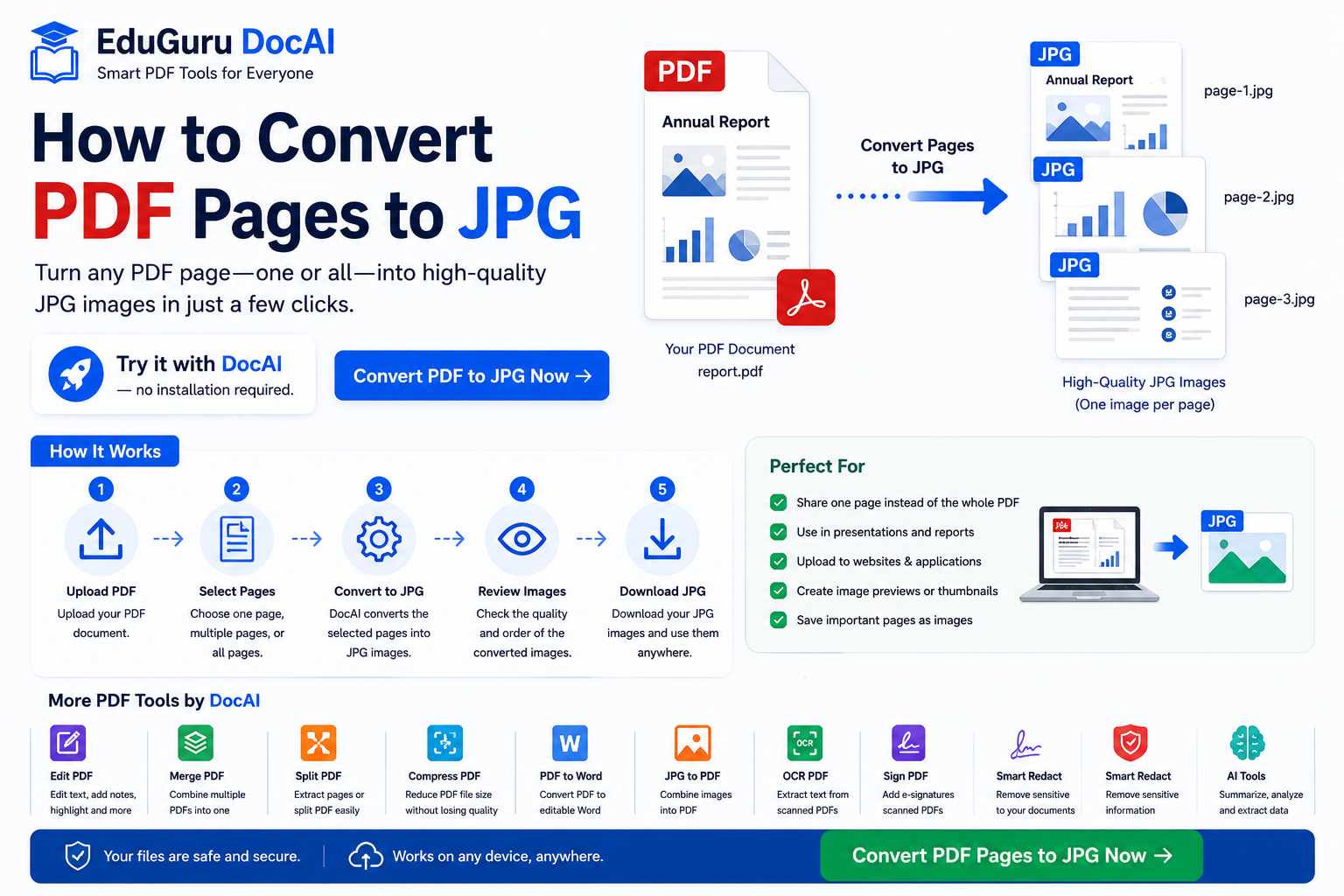
PDF is an excellent format for storing and sharing documents, but sometimes you don’t need the entire PDF. You may simply want to turn one page—or every page—into an image that can be easily shared, uploaded, inserted into a presentation, or used on a website.
That’s where PDF to JPG conversion can help.
With EduGuru DocAI PDF Tools, you can convert PDF pages into JPG images directly from your browser.
Try it with DocAI — no installation required.
What Does PDF to JPG Conversion Mean?
PDF to JPG conversion transforms pages of a PDF document into individual JPG image files.
For example, suppose you have:
company-brochure.pdf
containing five pages.
After conversion, you could have:
page-1.jpgpage-2.jpgpage-3.jpgpage-4.jpgpage-5.jpg
Each PDF page becomes an image that can be viewed and used independently.
This is different from extracting images already embedded inside a PDF. PDF-to-JPG conversion renders the entire page as an image, including its text, graphics, tables, and other visible content.
Why Convert PDF Pages to JPG?
There are many situations where having a PDF page as an image is more convenient.
Share a Single PDF Page
Suppose you have a 50-page report but only need to share one chart or page.
Instead of sending the complete PDF, you can convert the required page into a JPG.
Upload PDF Content as an Image
Some websites and applications accept JPG images but don’t support PDF uploads.
Converting the required PDF page solves this problem.
Use PDF Pages in Presentations
A page from a report, brochure, certificate, or other document can be converted into an image and inserted into a presentation.
Share on Social Media
PDF files aren’t always convenient for social-media posts.
A PDF page converted to JPG can be easier to publish as an image.
Create Image Previews
Websites and document-management systems can use JPG versions of PDF pages as thumbnails or previews.
Save Individual Pages
If you only need certain pages from a document, converting them to JPG can provide a simple way to keep those pages separately.
How to Convert PDF Pages to JPG Online
The process can be completed directly through your browser.
Step 1: Open EduGuru DocAI PDF Tools
Open the EduGuru DocAI PDF Tools page.
You don’t need to install traditional PDF conversion software.
Step 2: Select PDF to JPG
Choose the PDF to JPG or appropriate image-conversion option.
This tells DocAI that you want to convert pages of your PDF into images.
Step 3: Upload Your PDF
Choose the PDF document you want to convert.
Examples might include:
- Reports
- Brochures
- Certificates
- Presentations
- Invoices
- Scanned documents
- Study material
- Forms
- Business documents
Always consider whether a document contains sensitive information before uploading it to any online service.
Step 4: Choose the PDF Pages
Depending on the available conversion options, select the pages you need.
For example:
All pages
or:
Pages 1, 3 and 7
or:
Pages 10–15
Selecting only the required pages can save time when working with a large PDF.
Step 5: Convert PDF to JPG
Start the conversion.
DocAI processes the selected pages and creates JPG images representing the visible content of those pages.
A three-page selection could therefore produce:
page-1.jpg
page-2.jpg
page-3.jpg
Step 6: Review Image Quality
Check the resulting JPG images before using them.
Pay attention to:
- Text clarity
- Image resolution
- Charts and graphs
- Small print
- Page edges
- Colors
- QR codes
- Barcodes
- Signatures
The required quality depends on how you intend to use the images.
Step 7: Download Your JPG Images
Once the conversion is complete, download the resulting images.
Need a PDF Page as an Image?
Turn your PDF pages into JPG files directly from your browser.
Try it with DocAI — no installation required.
Convert One PDF Page to JPG
You don’t always need to convert the entire document.
Suppose you have a 100-page report and only want page 27.
A practical workflow is:
Upload PDF → Select Page 27 → Convert → Download JPG
This can be useful when you want to share:
- A chart
- A certificate
- An invoice
- A particular report page
- A diagram
- A form
- A presentation slide
without sending the complete PDF.
Convert All PDF Pages to JPG
You may also need every page as a separate image.
For example:
catalog.pdf
could become:
catalog-page-01.jpgcatalog-page-02.jpgcatalog-page-03.jpgcatalog-page-04.jpg
and so on.
This can be useful for image galleries, previews, document-processing systems, or applications that require image files instead of PDFs.
PDF to JPG for Social Media
Suppose you’ve created a PDF brochure containing information you’d like to share on LinkedIn, Facebook, Instagram, or another platform.
Instead of asking people to open a PDF, you can convert selected pages into images.
For example:
PDF Brochure → JPG Pages → Social Media Post
Before posting, however, check the image dimensions and crop or resize the output appropriately for the target platform.
PDF to JPG for Presentations
A PDF may contain a chart or graphic you want to reference during a presentation.
Instead of taking a screenshot—which can result in inconsistent cropping—you can convert the required page into a JPG image.
Then insert that image into your presentation.
This can be useful for:
- Business presentations
- Training material
- Sales presentations
- Academic projects
- Research presentations
- Reports
Always make sure you have the right to reuse the source material.
PDF to JPG for Websites
Web browsers can display PDFs, but images are often easier to integrate into page layouts.
PDF-to-JPG conversion can help create:
- Document previews
- Product catalog pages
- Portfolio previews
- Report thumbnails
- Certificate previews
- Brochure images
For websites, consider optimizing the JPG afterward so the image doesn’t unnecessarily slow down the page.
PDF to JPG for Scanned Documents
Scanned PDFs generally consist of page images already wrapped inside a PDF.
Converting those pages to JPG can make the individual scans easier to use separately.
For example:
Scanned PDF containing 10 pages
can become:
10 individual JPG images
If you need the text contained in those images rather than just the page image, OCR may be more appropriate.
PDF to JPG vs OCR
These two operations solve different problems.
PDF to JPG
Creates an image of the PDF page.
OCR
Attempts to recognize the text contained inside the page.
Suppose a PDF contains a scanned invoice.
If you want an image of the invoice:
PDF → JPG
If you want to extract the invoice text:
PDF → OCR → Recognized Text
If you need both, you can use the appropriate tools as part of the same document workflow.
Need Text From Your PDF Instead?
Use DocAI OCR to recognize text contained inside scanned documents.
Explore DocAI PDF & OCR Tools →
PDF to JPG vs Taking a Screenshot
Taking a screenshot may appear to be the easiest way to create an image from a PDF page.
However, screenshots have several limitations.
They can:
- Capture browser controls
- Miss parts of the page
- Produce inconsistent dimensions
- Depend on screen resolution
- Require manual cropping
- Reduce readability
A dedicated PDF-to-JPG converter renders the PDF page directly rather than capturing what’s displayed on your screen.
For multiple pages, conversion is also much faster than taking individual screenshots.
JPG Quality and Resolution
The quality of the resulting JPG matters.
Higher-resolution images generally provide:
- Clearer text
- Better diagrams
- Better print quality
- More readable small details
But they also create larger files.
Lower-resolution JPGs:
- Load faster
- Take less storage
- Are easier to share
but may lose fine detail.
The right balance depends on the intended use.
For a small website preview, a lower-resolution image may be sufficient.
For a certificate or detailed chart, higher quality may be more important.
Can PDF to JPG Reduce File Size?
Not necessarily.
Converting a PDF page to JPG changes the format, but it doesn’t guarantee a smaller overall file size.
A text-based PDF can actually be very efficient, while high-resolution JPG versions of every page could require more storage.
If your goal is specifically to reduce PDF size, use a PDF compression tool instead.
Is Your PDF Too Large?
Reduce its file size rather than converting it unnecessarily.
JPG vs PNG: Which Is Better for PDF Pages?
JPG and PNG are both common image formats, but they have different strengths.
JPG
Usually suitable for:
- Photographs
- Scanned documents
- General page previews
- Smaller image files
PNG
Often suitable for:
- Screenshots
- Diagrams
- Text-heavy graphics
- Images requiring lossless compression
If your tool supports both formats, choose based on how the resulting image will be used.
For general PDF page conversion, JPG is widely compatible and convenient.
Protect Sensitive Information Before Converting
PDF documents may contain sensitive information such as:
- Names
- Email addresses
- Phone numbers
- Addresses
- Dates of birth
- Passport numbers
- Bank information
- Credit card numbers
- Government identification numbers
Indian documents may also contain identifiers such as:
- Aadhaar
- PAN
- GSTIN
- IFSC
When you convert a PDF page into JPG, the sensitive information visible on that page also becomes part of the image.
That can make it easier to accidentally share information you didn’t intend to disclose.
Redact Before Converting to JPG
If a document contains sensitive information, consider redacting it before creating the JPG.
A safer workflow can be:
Upload PDF → Detect Sensitive Information → Redact → Review → Convert to JPG → Share
DocAI’s Smart Redact capabilities are designed around identifying and protecting sensitive information in documents.
Sharing Your PDF Page as an Image?
Check for sensitive information first.
More Than PDF to JPG
With EduGuru DocAI PDF Tools, you can continue working with your document instead of using a separate service for every operation.
Edit PDF
Make supported changes to PDF documents.
Merge PDF
Combine multiple PDFs into one document.
Split PDF
Separate pages or sections.
Compress PDF
Reduce PDF file size.
PDF to Word
Convert supported PDFs into editable Word documents.
JPG to PDF
Combine images into PDF documents.
PDF to JPG
Turn PDF pages into image files.
OCR PDF
Recognize text inside scanned documents.
Sign PDF
Add electronic signatures.
Smart Redact
Identify and remove sensitive information before sharing.
AI Document Tools
Use supported AI capabilities to summarize, analyze, translate, extract, and understand document content.
Frequently Asked Questions
How do I convert PDF pages to JPG?
Upload your PDF to a PDF-to-JPG converter, select the required pages, start the conversion, review the output, and download the resulting JPG images.
Can I convert a PDF to JPG online?
Yes. Browser-based PDF conversion tools allow you to convert PDF pages without installing desktop software.
Can I convert just one PDF page to JPG?
Yes. If page selection is supported, choose only the page you need and convert it into an image.
Can I convert every PDF page into a separate JPG?
Yes. A multi-page PDF can be rendered as individual JPG files, with one image representing each page.
Does converting PDF to JPG affect quality?
Image quality depends on factors such as output resolution, JPG compression, and the original PDF. Higher-quality output generally creates larger image files.
Is PDF to JPG the same as extracting images from a PDF?
No. PDF-to-JPG conversion renders the entire page as an image. Image extraction retrieves individual images embedded inside the PDF.
Can I convert a scanned PDF to JPG?
Yes. Each scanned page can be converted into a JPG image.
Can I extract text after converting PDF to JPG?
OCR can be used to recognize text contained inside images, although it’s generally more efficient to OCR the original PDF when possible.
Is JPG better than PDF?
It depends on your use case. PDF is generally better for multi-page documents and preserving document structure, while JPG can be more convenient when you need an individual page as an image.
Should I redact information before converting a PDF to JPG?
Yes, if the page contains sensitive information that shouldn’t appear in the image. Redacting before conversion helps prevent that information from being included in the final JPG.
Convert PDF Pages to JPG With DocAI
Whether you need a single page from a report, images for a presentation, document previews for a website, or every page of a PDF as separate JPG files, EduGuru DocAI PDF Tools can help simplify the workflow.
Try it with DocAI — no installation required.
Convert PDF Pages to JPG Online →
DocAI — Edit. Understand. Protect. Automate.